10 Common App Store Screenshot Mistakes to Avoid
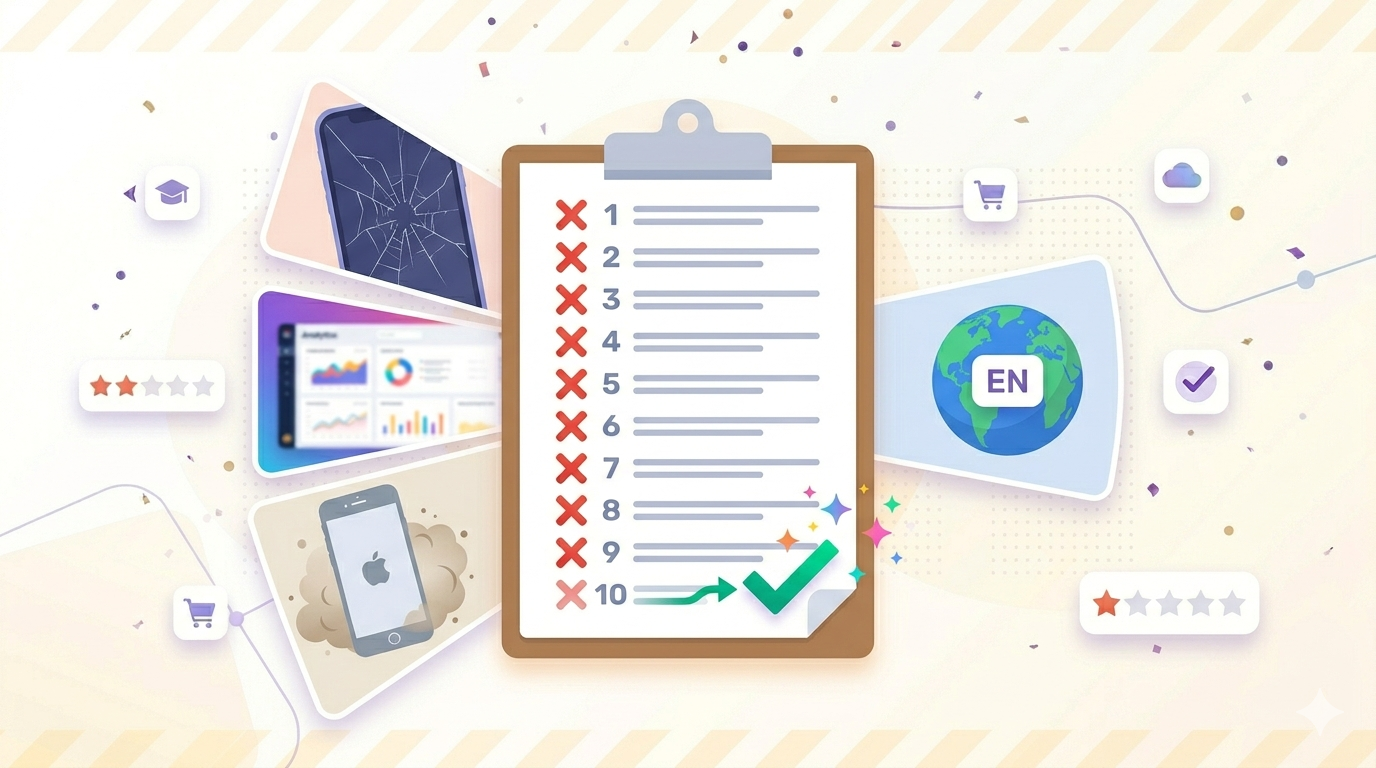
Your App Store screenshots are your storefront. They are the single biggest factor in whether someone taps "Get" or keeps scrolling. Yet most developers sabotage their own downloads by repeating the same app store screenshot mistakes over and over again.
The good news? These mistakes are easy to fix once you know what to look for. In this guide, we break down the 10 most common app store screenshot mistakes, explain why each one hurts conversions, and show you exactly how to fix them.
Why App Store Screenshot Mistakes Cost You Downloads
According to Apple's own product page guidelines, screenshots are the first visual content most users see. On the App Store, the first three screenshots appear before a user even reads your description.
Research from SplitMetrics suggests that well-optimized screenshots can improve conversion rates by up to 35%. That means bad screenshots are not just a design problem. They are a revenue problem.
Whether you are launching a new app or trying to improve an existing listing, avoiding these mistakes should be at the top of your ASO checklist. If you need a broader toolkit to audit your listing, check out our free ASO tools.
The 10 Most Common App Store Screenshot Mistakes
1. Using Low-Resolution or Blurry Screenshots
This sounds obvious, but it happens more often than you would think. Developers upload screenshots that are slightly stretched, compressed, or taken from a simulator at the wrong resolution. The result is a blurry first impression that screams "amateur."
Apple requires specific pixel dimensions for each device. An iPhone 15 Pro Max screenshot must be exactly 1320 x 2868 pixels. Uploading anything smaller and then scaling it up will produce visible artifacts.
The fix: Always export screenshots at the exact required resolution. Use device-native screen captures or a tool like Shotlingo that generates pixel-perfect mockups automatically.
2. Leading With a Splash Screen or Login Page
Your first screenshot is the most important one. It is what users see in search results before they even tap on your listing. If that first image shows a generic splash screen or a login form, you have already lost.
Nobody downloads an app because the login page looks nice. They download it because they can see the value inside.
The fix: Lead with your best feature. Show the core experience of your app in the very first screenshot. Save onboarding flows for your actual onboarding, not your marketing.
3. Cramming Too Much Text Onto Screenshots
A common instinct is to explain everything on every screenshot. This leads to tiny fonts, dense paragraphs overlaid on the UI, and an overall cluttered look that nobody reads.
Remember that most users browse the App Store on a phone. Your text needs to be readable at a glance on a 6-inch screen. That means short headlines, not paragraphs.
The fix: Limit each screenshot to one headline of 5 to 8 words. Use a large, bold font. Let the UI speak for itself. For inspiration, see our roundup of app store screenshot examples that actually convert.
4. Using Outdated Device Mockups
If your screenshots still show an iPhone X notch or an iPhone 8 with a home button, users will assume your app has not been updated in years. Outdated device frames signal neglect.
Apple regularly updates its device lineup, and your marketing materials should reflect that. Users want to see your app running on a device that looks like the one in their pocket.
The fix: Update your mockups whenever Apple releases a new flagship device. Use the latest iPhone and iPad frames. Shotlingo keeps its device library current so you never have to worry about this.
5. Not Using All Available Screenshot Slots
Apple lets you upload up to 10 screenshots per device size. Many developers stop at 3 or 4. That is leaving free real estate on the table. Not sure how many you should use? We cover that in detail in our guide on how many screenshots you need for the App Store.
Each screenshot is an opportunity to highlight a different feature, address a different user concern, or reinforce your value proposition.
The fix: Use at least 6 to 8 screenshots. Cover your core features, show social proof if you have it, and end with a clear call to action. More screenshots mean more chances to convince.
6. Ignoring Localization
This is one of the most expensive app store screenshot mistakes you can make. If your app is available in 40 countries but your screenshots are only in English, you are ignoring the majority of your potential users.
A user in Japan scrolling through the App Store expects to see Japanese text. A user in Germany expects German. Showing them English-only screenshots creates friction and kills trust.
The fix: Localize your screenshots for every market that matters. This used to be expensive and time-consuming, but tools like Shotlingo make it fast. Start with your top markets. For example, our German screenshot localization page walks you through the process step by step. You can explore all supported languages on our localization hub.
7. No Clear Headline or Value Proposition on the First Screenshot
Some developers show their app UI in the first screenshot without any text at all. Others use a vague tagline like "The best app for you." Neither approach works.
Your first screenshot headline should communicate a specific benefit in plain language. What problem does your app solve? Say it clearly.
The fix: Write a headline that answers the question "Why should I download this?" in under 8 words. Be specific. "Track your spending in 10 seconds" beats "The ultimate finance app" every time.
8. Inconsistent Visual Style Across Screenshots
When each screenshot uses a different background color, font, or layout style, the overall impression is chaotic. It looks like the screenshots were made by different people at different times, which they probably were.
Consistency builds trust. It signals professionalism and attention to detail.
The fix: Create a template with fixed colors, fonts, and layout grids. Apply it to every screenshot. This is one of the biggest advantages of using a dedicated screenshot tool rather than designing each image from scratch in Figma.
9. Showing Features Nobody Cares About Instead of Benefits
Developers love their features. Users care about outcomes. There is a big difference between "Advanced filtering system with 47 parameters" and "Find exactly what you need in seconds."
Features are what your app does. Benefits are what your app does for the user. Your screenshots should focus on the latter.
The fix: For each screenshot, ask yourself: "What does the user gain from this?" Lead with the benefit in your headline and let the UI demonstrate the feature underneath.
10. Never Updating Screenshots After Major UI Changes
You redesigned your app six months ago, but your App Store screenshots still show the old interface. When a user downloads your app and sees something completely different from what was advertised, you get bad reviews and refund requests.
Outdated screenshots also mean you are missing the chance to show off your latest and greatest work.
The fix: Add screenshot updates to your release checklist. Every time you ship a major UI change, update your screenshots. With Shotlingo, regenerating localized screenshots across all languages takes minutes, not days.
Quick Reference: App Store Screenshot Mistakes vs Fixes
Use this table as a checklist when auditing your current App Store listing.
| Mistake | Why It Hurts | Fix |
|---|---|---|
| Low-resolution or blurry images | Looks unprofessional, erodes trust | Export at exact required pixel dimensions |
| Leading with splash/login screen | Wastes your most valuable slot | Show your best feature first |
| Too much text on screenshots | Unreadable on mobile, cluttered look | One headline per screenshot, 5-8 words |
| Outdated device mockups | Signals a neglected, outdated app | Use current-generation device frames |
| Not using all screenshot slots | Missed opportunities to convince | Use at least 6-8 of 10 available slots |
| No localization | Alienates non-English-speaking users | Localize screenshots for top markets |
| No headline on first screenshot | Users do not understand the value | Write a specific, benefit-driven headline |
| Inconsistent visual style | Looks chaotic and unprofessional | Use a consistent template across all shots |
| Features instead of benefits | Users do not connect with technical jargon | Lead with what the user gains |
| Never updating screenshots | Mismatch between listing and actual app | Update screenshots with every major release |
FAQ
What is the biggest app store screenshot mistake?
Ignoring localization is arguably the most costly mistake because it affects every non-English market simultaneously. If your app is available globally but your screenshots are English-only, you are leaving significant download volume on the table. Apple strongly encourages localization and gives localized apps better visibility in regional search results.
How many screenshots should I use on the App Store?
Apple allows up to 10 screenshots per device size. We recommend using at least 6 to 8. Each screenshot should highlight a different benefit or feature. The first three are the most critical because they appear in search results before a user taps into your listing. Read our full breakdown in how many screenshots you need for the App Store.
How often should I update my App Store screenshots?
Update your screenshots whenever you make a significant UI change, rebrand, or add a major feature. At minimum, review your screenshots quarterly. Seasonal updates can also boost engagement if done tastefully. The key is making sure what users see in the store matches what they get after downloading.
Stop Making These Mistakes Today
Every one of these app store screenshot mistakes is fixable, and fixing them can directly increase your download rate. You do not need a design team or a massive budget. You need the right tool and a clear understanding of what works.
Shotlingo helps you create professional, localized App Store screenshots in minutes. No design skills required. Generate pixel-perfect mockups, localize into 40+ languages, and keep your listing fresh with every update.
Try Shotlingo free and start turning your screenshots into your best conversion asset.