How to Localize Screenshots for 40+ Languages Without Losing Your Mind
If you have ever tried to manually localize app store screenshots for even 5 languages, you know the pain. Now imagine scaling that to 40+ languages. The math is brutal: 10 screenshots × 40 languages = 400 individual images to create, review, and maintain. Without the right workflow, this is a recipe for burnout and errors.
The good news? In 2026, AI-powered localization tools have made this process dramatically more manageable. Here is a practical guide to localizing your screenshots at scale without sacrificing quality.
Why Localize Screenshots at All?
The data speaks for itself. Apps that localize their store listings — including screenshots — see an average 30% increase in downloads in localized markets. For some categories like gaming and social media, this number can exceed 80%.
Apple and Google both prioritize localized listings in their search algorithms. A fully localized listing in Japanese, for example, will rank significantly higher in the Japan App Store than an English-only listing, even if the app itself supports Japanese.
The Traditional Workflow (And Why It Breaks)
The old-school approach looks something like this:
- Design screenshots in Figma or Photoshop with text layers
- Send text to translators or a translation management system
- Wait for translations to come back
- Manually replace text in each screenshot for each language
- Adjust layouts for longer or shorter translations
- Export each variation individually
- Upload to App Store Connect / Google Play Console
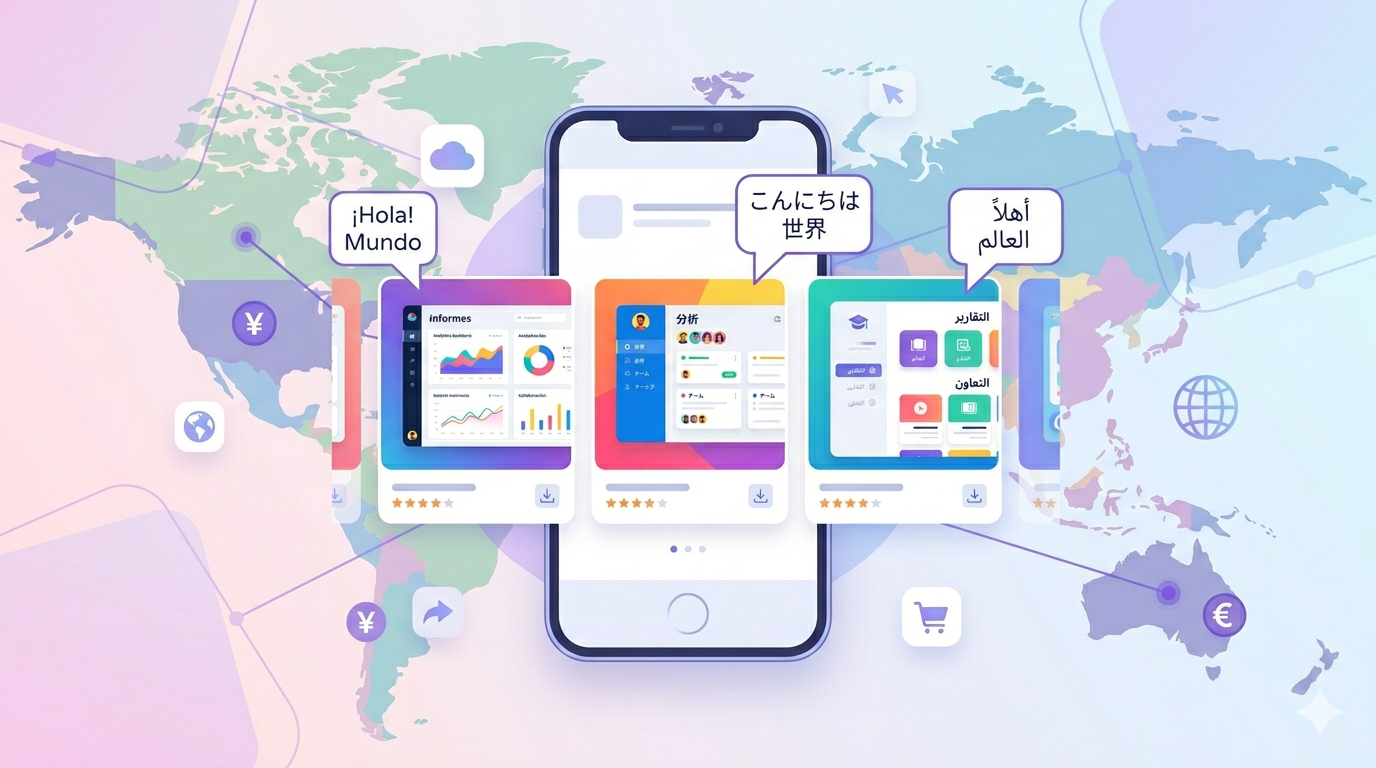
This workflow has several critical failure points. German text is 30-40% longer than English, so your carefully designed layouts break. Arabic and Hebrew require completely mirrored layouts. CJK characters need different font sizes. And every time you update your app, you need to repeat the entire process.
The Modern Approach: Template-Based Localization
The key insight that transforms this workflow is separating design from content. Instead of creating static images, you create dynamic templates where text is a variable, not a fixed element.
Step 1: Design Once, Parameterize Everything
Create your screenshot template with placeholder text. Every text element — headlines, captions, UI labels — should be a separate, editable layer. Tools like Shotlingo let you build these templates visually and mark each text element for translation.
Step 2: Translate with AI, Refine with Humans
Use AI translation as your first pass. Modern neural machine translation models handle app-related terminology surprisingly well, especially for common language pairs. For critical markets (your top 5 revenue countries), invest in human review. For long-tail markets, AI translation alone is often sufficient.
Step 3: Auto-Adapt Layouts
Smart templates automatically adjust text size, positioning, and even layout direction based on the translated content. German text gets slightly smaller, Arabic layouts mirror, and Japanese text uses the appropriate font stack — all without manual intervention.
Step 4: Batch Export
Export all 400+ screenshots in a single operation. The tool handles device-specific sizing, format requirements, and naming conventions for both App Store and Google Play.
Handling Tricky Languages
Right-to-Left (RTL) Languages
Arabic, Hebrew, Persian, and Urdu require special attention. Beyond mirroring the text direction, you should also mirror the overall visual layout. If your English screenshot shows a phone on the right with text on the left, the RTL version should flip this. Users expect visual flow to follow their reading direction.
CJK Languages (Chinese, Japanese, Korean)
These languages are typically more compact than English, so you gain space. However, they require careful font selection. System fonts render these languages well, but custom fonts may not include the necessary character sets. Always test with actual translated content, not lorem ipsum.
Languages with Diacritics
Vietnamese, Thai, and several European languages use diacritics that can clip if line height is too tight. Build extra vertical padding into your text containers to accommodate these characters.
Quality Control at Scale
When dealing with 40+ languages, manual review of every screenshot is impractical. Instead, implement a tiered review process:
- Automated checks: Text overflow detection, missing translations, character encoding validation
- Tier 1 review (top markets): Native speaker review of all screenshots
- Tier 2 review (secondary markets): Spot-check by bilingual team members
- Tier 3 (long-tail markets): AI translation with automated QA only
Maintaining Localized Screenshots Over Time
The biggest advantage of template-based localization is maintenance. When you update your app UI or want to refresh your screenshots, you update the template once. All 40+ language variations regenerate automatically. This turns what was a multi-week project into a same-day task.
Start small — localize for your top 5 markets first and measure the impact. Once you see the download increases, expanding to 40+ languages becomes an obvious investment. The tools exist to make this practical today.