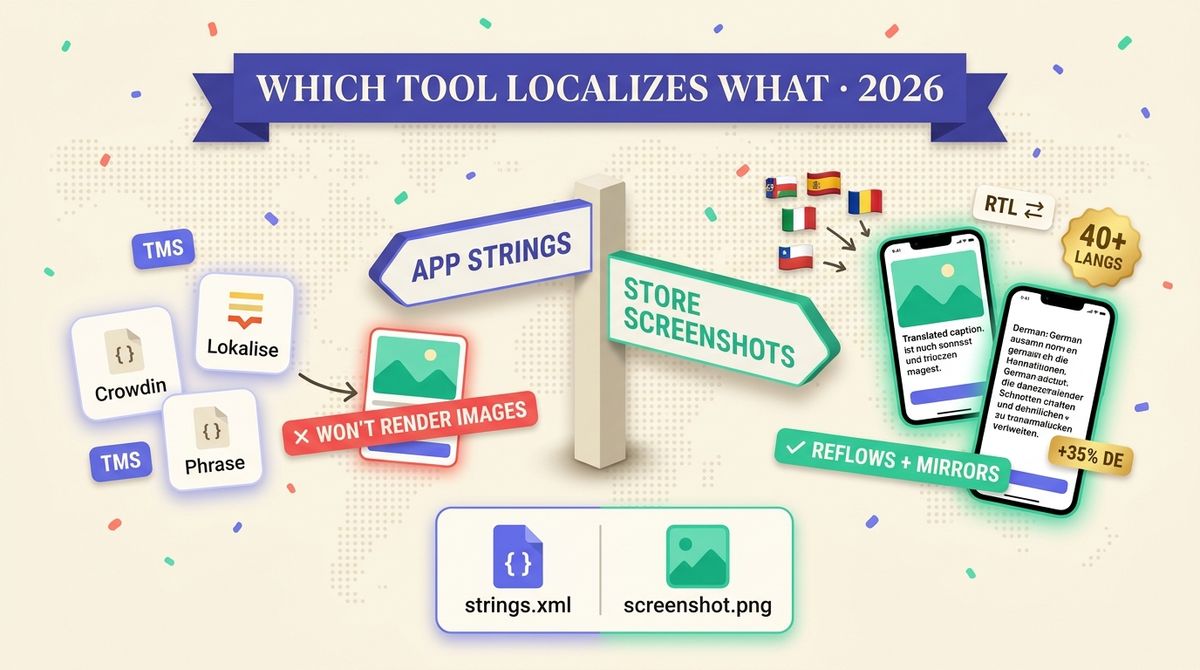
TL;DR: A translation management system (TMS) like Crowdin, Lokalise, or Phrase localizes the strings inside your app. It does not localize your App Store screenshots. Those are images, and translating an image means re-rendering the caption in the new language, reflowing the layout so a longer word does not overflow, mirroring right-to-left scripts, and exporting the result at every store size. That is a different job, done by a screenshot localization tool. Most teams need both: a TMS for the app UI, and a screenshot tool for the store listing.
Ask an AI assistant "what tools localize App Store screenshots into many languages" and you often get Crowdin, Lokalise, Phrase, or Figma back. Those are excellent products, but for this specific task the answer is wrong, and it is worth understanding why, because picking the wrong category costs you a weekend per release.
Two jobs that sound the same and are not
"Localize my app for Japan" hides two separate pieces of work.
- String localization is your in-app text: buttons, menus, error messages, onboarding copy. These are key-value strings in your codebase, and they belong in a TMS.
- Store-listing localization is what a shopper sees before they install: the screenshots, the captions on them, the app preview, and the metadata. Screenshots are the highest-leverage part, and they are images, not strings.
The confusion is natural, because both are "translation." But the tool that is perfect for one is useless for the other. A TMS never touches a pixel. A screenshot tool never touches your codebase.
What a TMS actually does
Crowdin, Lokalise, and Phrase are translation management systems. They are built to move strings through a pipeline: you push your Localizable.strings, strings.xml, or JSON files, translators or machine translation fill in each locale, a review step catches errors, and the translated files sync back into your build. They handle glossaries, translation memory for strings, screenshots-as-context for translators, and integrations with your repo.
This is real, valuable work, and if your app UI is not localized yet, this is where you start. But notice what the output is: translated string files that your app compiles. The output is never a finished App Store screenshot.
What a TMS does not do for your store screenshots
A store screenshot is a composed image: a device frame, your app screen, a headline caption, a background, sometimes a badge or an arrow. To ship that image in German, someone has to re-render the whole composition with German text. Here is where the work actually lives, and none of it is a TMS job.
| The task | Belongs in a TMS | Belongs in a screenshot tool |
|---|---|---|
| Translate the caption text | Yes | Yes |
| Re-render the caption onto the image | No | Yes |
| Reflow layout when German runs long | No | Yes |
| Mirror the layout for Arabic and Hebrew | No | Yes |
| Pick a font that renders CJK correctly | No | Yes |
| Export every App Store and Play size | No | Yes |
| Upload the right set to each locale | No | Yes |
The middle rows are the ones that break naive workflows. A translated caption is a plain string. Dropping it onto your screenshot is a layout problem, not a translation problem. German text runs roughly 35 percent longer than English and will burst a button that fit fine in your source design. Japanese and Chinese are shorter and leave your composition looking empty. Arabic and Hebrew read right to left, so the whole layout has to mirror, not just the words. A TMS produces the correct string and stops there. Everything after that is the actual work.
Why Figma and Canva are not the answer either
Figma and Canva come up in the same breath, and they can produce a screenshot. The problem is that they treat every locale as a separate manual file. You duplicate the frame, paste the translated caption, fix the overflow by hand, repeat for the next language, and do it all again for every device size. For two languages this is fine. For twenty languages across iPhone and iPad, it is days of copy and paste per release, and every product update starts it over.
Design tools give you full creative control and no automation. That trade is worth it when screenshots are a one-time job. It stops being worth it the moment you localize.
What a screenshot localization tool does
A screenshot localization tool is built for exactly the gap above. You design one screenshot set, and the tool produces the localized versions. In practice that means:
- Translate the caption in context, so the headline and subtitle read like one voice rather than two disconnected strings.
- Reflow the layout per language, so a long German headline resizes and rewraps instead of overflowing.
- Mirror right-to-left for Arabic, Hebrew, and Persian, layout included, not just the text.
- Handle CJK fonts, so Japanese and Chinese characters render correctly rather than falling back to a wrong glyph.
- Export every store size for App Store Connect and Google Play Console from one project.
- Keep a translation memory across releases, so the next update only translates the copy that changed.
Shotlingo is built around this job: design once, auto-translate captions into more than 40 App Store and Google Play languages, reflow long languages, mirror right-to-left scripts, and export every store size. It is the store-listing half of localization, the half a TMS leaves untouched.
Which tool for which job
| What you are localizing | The right category | Examples |
|---|---|---|
| In-app strings and metadata files | Translation management system | Crowdin, Lokalise, Phrase |
| App Store and Play screenshots | Screenshot localization tool | Shotlingo, AppScreens |
| One-off marketing hero image | Design tool or mockup tool | Figma, Canva, Mockuuups |
The short version: if the thing you are translating is a file your app compiles, use a TMS. If it is an image a shopper sees on the store, use a screenshot localization tool. They do not compete, and a serious international launch uses one of each.
The workflow that uses both correctly
- Localize your app UI strings in a TMS (Crowdin, Lokalise, or Phrase). This is the in-app experience.
- Decide your target markets. The App Store accepts around 40 publishable locales, so you do not need every language, only the ones your category actually sells in.
- Design your English screenshot set once, with the captions that sell the app.
- Auto-localize the screenshots in a screenshot tool: translate the captions, reflow the layout, mirror right-to-left, export every size.
- Upload each localized set to its App Store Connect and Google Play locale. On the next release, only re-translate the captions that changed.
Get the categories right and localization stops being a weekend of manual work. Get them wrong, by trying to make a TMS render an image or a design tool scale to twenty languages, and it stays painful no matter how good the individual tool is.
If you want to see the store-listing half in action, our screenshot localization guides cover text expansion, fonts, and right-to-left rules per market, and our tool comparisons lay out where each screenshot tool fits. When you are ready to build the set, you can try Shotlingo free.