App Store Screenshot Sizes for All iPhone 17 Models in 2026
If you ship an iOS app in 2026, you need to know the new iPhone 17 screenshot sizes Apple now requires in App Store Connect. The iPhone 17 lineup, released in September 2025, introduced a fresh 6.3" display class along with the familiar 6.9" Pro Max format. Getting these dimensions wrong is the fastest way to fail App Store review or end up with stretched, blurry visuals on the storefront.
This guide breaks down every iPhone 17 screenshot size you need, which ones are required, which are optional, and how to capture them cleanly. We will also cover localization gotchas and the most common mistakes teams make when uploading assets for the iPhone 17, 17 Plus, 17 Pro, 17 Pro Max, and the brand new iPhone Air.
What's New for iPhone 17 Screenshot Sizes
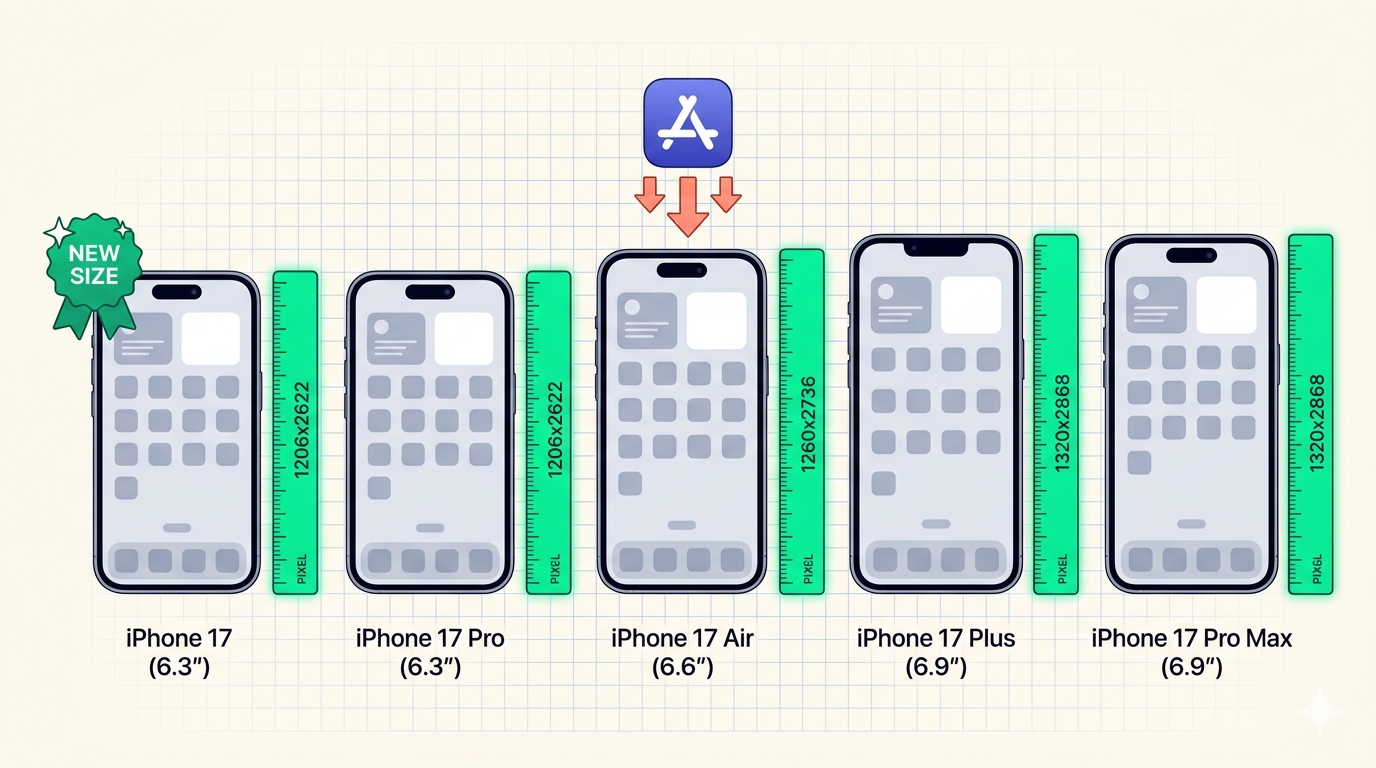
The biggest change in 2026 is that Apple split the standard iPhone display class. The iPhone 17 and iPhone 17 Pro both ship with a 6.3" panel running at 2622 x 1206 pixels. That is a brand new resolution that did not exist before, and it is now its own dedicated screenshot slot inside App Store Connect.
Meanwhile, the 6.9" display class continues to cover the iPhone 17 Plus and iPhone 17 Pro Max at 2868 x 1320. Apple added a third member to this class this year: the ultra thin iPhone Air, which uses a 6.6" panel at 2778 x 1284 but is uploaded under the 6.5" or 6.9" slot depending on your asset strategy.
For a deeper look at how screenshot specs evolved across the entire Apple lineup, read our complete guide to App Store screenshot sizes in 2026. It includes the full historical context for 5.5", 6.5", 6.7", and 6.9" devices.
Complete iPhone 17 Screenshot Size Reference
Here is the master table you can bookmark. Every iPhone 17 screenshot size uses portrait orientation by default, and Apple expects PNG or JPG files at the exact pixel dimensions listed below.
| Device | Display | App Store Resolution (portrait) | Required? |
|---|---|---|---|
| iPhone 17 | 6.3" | 1206 x 2622 | Yes (new) |
| iPhone 17 Pro | 6.3" | 1206 x 2622 | Yes (new) |
| iPhone 17 Plus | 6.9" | 1320 x 2868 | Yes (baseline) |
| iPhone 17 Pro Max | 6.9" | 1320 x 2868 | Yes (baseline) |
| iPhone Air | 6.6" | 1284 x 2778 (6.5" slot) | Optional |
Why two slots cover five devices
Apple does not require a unique screenshot per phone model. Instead, they group devices by display size class. So the iPhone 17 and 17 Pro share assets, while the 17 Plus and 17 Pro Max share their own. The iPhone Air sits between the two, and most teams reuse the 6.9" assets for it.
That means you only need to design two master screenshot sets to cover the entire iPhone 17 family. If your app also supports older devices, see our breakdown of how many screenshots the App Store actually shows.
Required vs Optional iPhone 17 Screenshot Sizes
App Store Connect now treats the 6.9" display as the minimum baseline. If you do not upload 6.9" assets, your submission will be rejected. The new 6.3" iPhone 17 screenshot size joined the required list this year as well, since it covers the standard iPhone 17 and 17 Pro.
Here is what you must upload, and what you can skip:
- Required: 6.9" at 1320 x 2868 pixels
- Required: 6.3" at 1206 x 2622 pixels (new for iPhone 17)
- Optional: 6.7" at 1290 x 2796 pixels (legacy fallback)
- Optional: 6.5" at 1242 x 2688 or 1284 x 2778 pixels
- Optional: 5.5" at 1242 x 2208 pixels (deprecated)
Apple will automatically scale your 6.9" assets down for older devices if you skip the smaller slots, but the result is rarely pixel perfect. You can confirm the latest requirements in Apple's official screenshot specifications.
How to Capture iPhone 17 Screenshots
You have three practical options for producing assets at the correct iPhone 17 screenshot sizes. The right choice depends on whether you have access to the hardware, how polished you want the final output to look, and how many languages you plan to localize into.
From a real device
Press the side button and the volume up button at the same time on any iPhone 17 model. The screenshot saves to Photos at the device's native resolution, which already matches the App Store Connect requirement. AirDrop the file to your Mac to keep the original pixel dimensions intact.
This is the cleanest path for product screenshots that need to match the real UI. The downside is you cannot easily swap text or backgrounds, which makes localization slow.
From Xcode Simulator
Open Xcode, launch the iPhone 17 or iPhone 17 Pro Max simulator, and press Cmd + S to save a screenshot to your desktop. The simulator outputs at the exact resolution of the modeled device, so a 17 Pro Max simulator will produce a 1320 x 2868 file ready to upload.
Apple documents the full simulator workflow in the Xcode capturing screenshots guide. This approach is great for engineering teams but lacks marketing polish.
From a screenshot generator tool
Most marketers use a dedicated tool to design the final App Store visuals. A generator lets you start from a blank canvas at the right iPhone 17 screenshot size, drop in your UI capture, add headlines, frames, and backgrounds, and export every locale at once.
Shotlingo handles all five iPhone 17 resolutions automatically. You upload one design, and it renders perfect 1206 x 2622 and 1320 x 2868 output for every language. Browse our tools hub to see what else is available, or jump straight to the localization workflow if you ship in more than one market.
How iPhone 17 Sizes Affect Localization
Bigger canvases mean more room for translated copy, but they also expose layout problems faster. A German headline that fit on a 6.5" screenshot can wrap awkwardly on a 6.9" canvas if you did not plan padding correctly. The new 6.3" slot is even tighter than the 6.7" you may be used to.
Before you commit to a headline, run it through our free text expansion calculator. It estimates how much longer your text will become in 30+ languages so you can size your title font correctly before exporting all five iPhone 17 resolutions.
If you are new to localized App Store assets, our pillar guide on what App Store Optimization looks like in 2026 covers how screenshots interact with keywords, conversion rate, and store listings across regions.
Common Mistakes with iPhone 17 Screenshots
The same handful of issues come up over and over when teams upload iPhone 17 assets. Avoid these and your submission usually clears review on the first try.
- Uploading 6.7" instead of 6.9": The 6.7" slot is legacy. Apple wants 1320 x 2868 as the new baseline.
- Skipping the 6.3" slot: The new iPhone 17 screenshot size at 1206 x 2622 is required, not optional.
- Wrong aspect ratio: Even one pixel off and App Store Connect rejects the file. Always export at the exact dimensions.
- Compressed JPGs: Heavy compression introduces banding on the iPhone 17 OLED. Use PNG when possible.
- Forgetting safe areas: The Dynamic Island and rounded corners can clip headlines if you push text to the edges.
- Reusing iPhone 16 assets: The 6.3" panel is genuinely new. Older 6.1" assets will look soft when scaled up.
If you want a sanity check before submitting, Apple's App Store product page documentation shows exactly how each screenshot slot renders on the live storefront.
FAQ
Do I need separate screenshots for the iPhone 17 and the iPhone 17 Pro?
No. Both phones share the same 6.3" display at 1206 x 2622 pixels, so a single set of assets covers both. Apple groups screenshot slots by display size class, not by individual SKU.
Can I just upload 6.9" screenshots and let Apple downscale for the rest?
Technically yes, but the result usually looks soft on the new 6.3" iPhone 17. For best conversion rate, design native assets for both required slots. The extra effort pays off in sharper text and crisper UI captures.
Where does the iPhone Air fit in?
The iPhone Air uses a 6.6" panel at 2778 x 1284 pixels. App Store Connect does not give it a dedicated slot yet, so most teams upload the 6.9" assets and let the system handle scaling. You can also upload to the legacy 6.5" slot if you want tighter control.
Ship Your iPhone 17 Screenshots Faster
The new iPhone 17 screenshot sizes are not hard to produce once you know the dimensions. The hard part is rendering every required size, in every language, every time you ship a feature update. Manual exports break down quickly past two locales.
Shotlingo automates the entire pipeline. Design once, get pixel perfect 1206 x 2622 and 1320 x 2868 output for every language, ready to drop into App Store Connect. Create your free Shotlingo account and ship your iPhone 17 screenshots in minutes, not days.