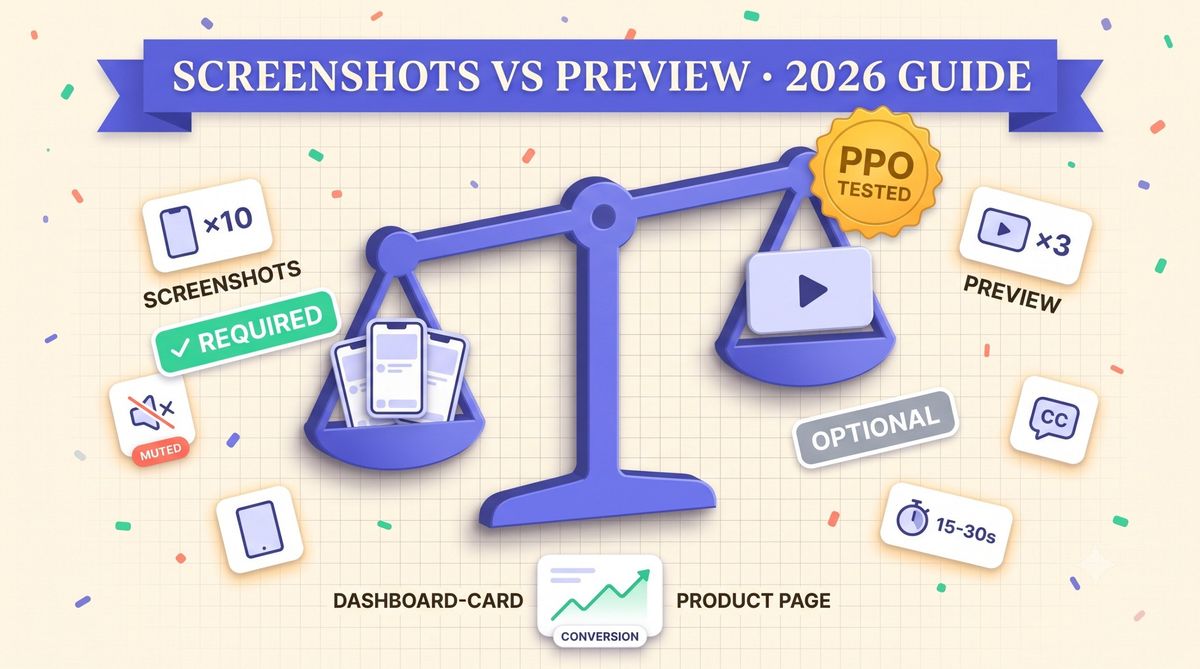
TL;DR: Screenshots are mandatory for every app. A preview video is optional. Apple shows only one preview per localization in Search, autoplaying muted, and it never replaces the screenshot set underneath it. If your production time is limited, finish and test the screenshots first: they are what every visitor sees, on every device size, in every locale. Add a preview video once the screenshot set is stable and you have thirty seconds of real product footage worth watching on mute. A weak video under a strong screenshot set costs you little. A missing screenshot for a required device size can block submission entirely.
Every App Store optimization thread eventually asks the same question: does a preview video move the needle, or is it a production cost most indie teams can skip? The honest answer depends on which asset you are missing, not on a universal ranking rule. Below is what Apple actually requires, how each asset behaves differently in Search versus the product page, and a decision path for where your next hour of work should go.
What Apple actually requires from each asset
App Store Connect makes exactly one of these mandatory. Every app needs at least one screenshot per supported device size class before it can submit. A preview video is optional in every category. You can publish, and rank, with zero previews live on your listing.
That asymmetry matters more than most teams treat it. Skipping the preview video costs nothing at submission time. Skipping a required screenshot size blocks the build from going live at all. If you are triaging a launch week with limited hours, the screenshot set is the asset that gates everything else, and it is worth confirming exact pixel dimensions per device with our App Store screenshot size reference before shooting anything.
The requirement also scales with how many device families you support. An app built only for the newest iPhone still needs its 6.9-inch set. An app that also ships an iPad build needs a separate 13-inch set, because iPad screenshots do not fall back to the iPhone assets the way some developers assume. Apple auto-scales a large screenshot down to smaller device sizes within the same family when a size is missing, but it does not cross from iPhone to iPad or the reverse. Miss the iPad set on an app that supports iPad and the listing ships with blank space where a screenshot should be, not a scaled substitute.
How each asset behaves in Search versus the product page
Search results and the product page are different surfaces, and Apple treats these two assets differently on each one.
In Search, the App Store shows a small preview badge on the app icon when a preview video exists. Tap it and the video plays inline, muted by default, with captions or on-screen text carrying the message since most users never turn the sound on there. If there is no preview video, Search simply shows the icon with no badge. Screenshots do not appear in the Search results list at all. They only show up once a visitor opens the product page.
On the product page, the order flips. The first media item, whether that is the preview video or the first screenshot, is what a visitor sees without scrolling. Apple allows up to three preview videos per localization, but only the first one autoplays; the other two require a tap. Every screenshot after the first one is available on a swipe, with a per-device cap of ten.
| Aspect | Screenshots | Preview video |
|---|---|---|
| Requirement | Mandatory, 1+ per device size | Optional |
| Max count | 10 per localization | 3 per localization |
| Shown in Search | No | Icon badge only |
| Autoplay | Not applicable | First video only, muted |
| Typical production time | Hours | Days: script, capture, edit, caption |
| Testable via Product Page Optimization | Yes | Yes |
| Blocks submission if missing | Yes, for required sizes | No |
When a preview video earns its production time
Apple caps Product Page Optimization tests at three alternative treatments against your original listing, four versions total, and each treatment can vary the icon, the screenshots, or the preview video. See our Product Page Optimization guide for how to set one up. That cap is useful information on its own: Apple built its entire testing system around swapping creative assets, screenshots and video alike, which signals both are expected to move conversion when they are done well.
A preview video earns its production time in three situations. It earns it when the product has a motion-dependent hook: a live drag interaction in an editor, or real gameplay footage, something a static frame cannot show on its own. It earns it when your screenshot set already tests well in PPO and you want an additional treatment to run rather than a redesign of the assets that already work. It also earns it when App Store category norms expect one; games and camera apps compete against listings where nearly every top result has a preview, and a blank badge next to them reads as unfinished.
None of those three cases means every app should ship a preview video by default. A utility app with a single clear screen rarely needs thirty seconds of motion to explain what the first screenshot already shows in one glance.
| Spec | Value | Note |
|---|---|---|
| Length | 15-30 seconds | Apple's App Previews specification |
| Max per localization | 3 | Only the first one autoplays |
| Audio | Muted by default | Caption the point on screen |
| Poster frame | Auto-selected or custom | Functions like a screenshot in Search |
| Footage source | Actual device or simulator capture | Concept art and mockups are not accepted |
Preview video and multiple product page variants
Apple lets you build up to 35 Custom Product Pages per app, each with its own screenshot set and, if you choose, its own preview video. Our guide to Custom Product Page variant counts covers how many are worth building before the maintenance cost outgrows the benefit, and the same math applies here twice over. A screenshot set left to drift out of date is a metadata problem. A preview video left to drift is a production problem, because re-shooting footage takes longer than swapping a static image.
The practical rule most teams settle on is to build a strong default screenshot set for every variant, and reserve preview video for the one or two variants that get the most paid traffic, typically the default listing and whichever Custom Product Page a Search Ads or Apple Ads campaign points to. Spreading video production evenly across 35 variants is rarely worth the hours next to putting them all into the screenshot sets those variants actually need.
How to tell whether the video worked
App Store Connect's analytics dashboard reports product page views and conversion rate separately from impressions, which is the split that matters here. Impressions measure how often your icon showed up in Search or browse. Product page view rate measures how many of those impressions turned into an actual visit, and conversion rate measures how many visits turned into a download. A preview video can only move the second two numbers; it never appears at the impression stage.
Apple does not publish a fixed sample size for a Product Page Optimization test. The report keeps a test running until it has enough traffic to call a result, and it will leave a low-traffic test inconclusive rather than force a premature winner. That means a small app should expect a video test to take longer to resolve than a large one, and reading a result after a handful of days is reading noise, not a signal.
A decision path for indie teams
Ship the full mandatory screenshot set for every device size you support first, and confirm none of them are stale against your current build. A redesign that changes a featured screen invalidates the screenshot showing it, and that drift is a common source of rejection independent of anything covered here.
Test the screenshot set alone in Product Page Optimization before adding a video treatment. A weak preview cannot rescue screenshots that are not converting, so isolate the variable you are actually trying to fix.
Once the screenshot set is stable, storyboard fifteen to thirty seconds of real footage built around one core action, captioned, with no voiceover required. Run it as a new PPO treatment against the winning screenshot set rather than replacing that set outright, so you measure the delta instead of guessing at it.
Common mistakes
The most common mistake is treating the preview video like a trailer. Apple's badge in Search plays muted, so a video that depends on a voiceover or a soundtrack to land its point loses the pitch before a viewer ever taps the audio icon. Caption the point on screen instead of narrating it.
The second is picking the poster frame as an afterthought. Whatever frame Apple selects, or the one set manually, functions exactly like a first screenshot everywhere the video is not actively playing. A poster frame pulled from a mid-scroll transition looks broken to anyone who never taps play.
The third is skipping localization on the video the same way teams sometimes skip it on screenshots. A preview shot with English on-screen text ships to every locale unless a version is recorded per language, the same gap our guide to screenshots that convert already covers for the static asset. If you are not ready to localize captions yet, keep the screenshot set carrying the message in each market and hold the video back until you are.
The fourth is over-producing the edit until the app looks faster or smoother than it actually runs. A cut that speeds up a slow transition or hides a loading state creates a worse first session than no video at all, because the person who just installed notices the gap between the preview and the real app within seconds.
We built Shotlingo around the screenshot side of this because it is the asset every app needs on day one. Preview video production is a separate skill set, and it is fine to add it later once the screenshots are shipped, tested, and localized.
Frequently asked
Do I need an App Store preview video?
No. Screenshots are the only mandatory visual asset, at least one per supported device size. A preview video is optional in every category, and plenty of apps rank and convert well without one.
How long can an App Store preview video be?
Between 15 and 30 seconds, and you can upload up to three per localization. Only the first one autoplays in Search and on the product page; the rest require a tap.
Does the App Store preview video play with sound?
No, it autoplays muted in both Search and the product page until a visitor taps to unmute. Design the video to carry its message through captions or on-screen text, not narration.
Can I A/B test a preview video against screenshots alone?
Yes, through Apple's Product Page Optimization. Create a treatment that swaps in the preview video while keeping your best-performing screenshot set, and run it against the original to see whether the video moves conversion for your specific app.