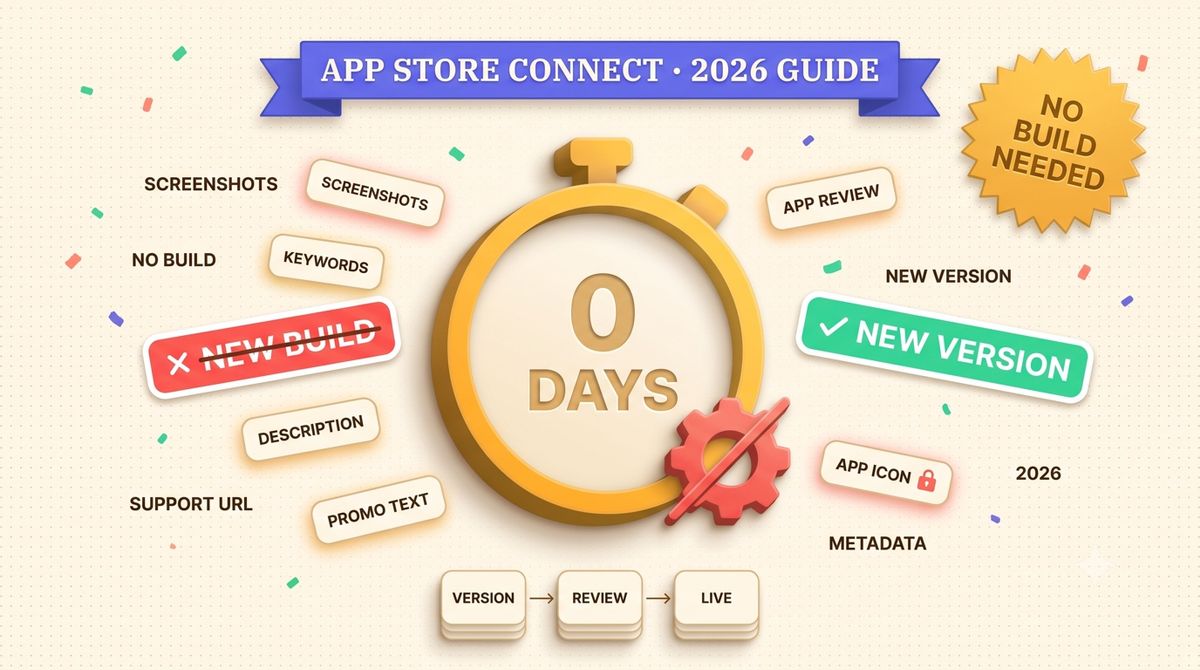
TL;DR: On an app that is already live, no. Screenshots, app previews, description, keywords, and your support and marketing URLs sit on a version entry in App Store Connect, so changing them takes a new version and a trip through App Review. That new version also needs a build, and Apple's help page on choosing a build says that once an earlier version of your app is Ready for Distribution, the list only includes builds you have uploaded since that version was released on the App Store. The build that is live today is not one of them. The exception is promotional text, which Apple says you can change without an updated submission.
This comes up because screenshots and builds look like two unrelated things in App Store Connect, and in one sense they are. Apple's help lists screenshots, description, keywords and URLs under platform version information, while builds are uploaded on their own and then attached to a version. But a version goes to App Review with a build attached, you can only associate one build with each version, and on a live app that build has to be a fresh upload. Separate fields, one submission.
The confusion has a real cost. Teams that treat every screenshot update as a code release end up queuing ASO work behind sprint planning, feature freezes, and QA cycles that have nothing to do with a product page image. If your last screenshot refresh shipped alongside a feature release three months ago because "that's when we had a build going out," this post is for you. The help page sets one condition on the build you attach: when it was uploaded. It says nothing about a feature having to ship with it.
What lives on the version, and what does not
Most of what shows up on your product page is version metadata, not code. Here is the breakdown that matters before you touch anything in App Store Connect:
- Screenshots and app previews. Version metadata, uploaded on the version page. On a live app that means a new version, and that version needs a newly uploaded build.
- Description and keywords. Also version metadata, with the same rule.
- Promotional text. Apple says it lets you inform your App Store visitors of current app features without requiring an updated submission. See the next section.
- Support URL and marketing URL. Version metadata, with the same rule as screenshots.
- App icon. Pulled from the binary's asset catalog, not from App Store Connect. A new icon has to be inside the build you upload.
- App name. Apple's help says you can change the name when you create a new version or when the status of the app version permits editing it.
Everything in that list except promotional text rides a version. The confusion comes from treating the version and the build as separate steps. They are separate fields, but the version is submitted with a build attached, and on a live app the build you already have no longer appears in the list.
The one field that skips App Review entirely: promotional text
Promotional text is a 170-character field that sits above your description. Apple's help says it lets you inform your App Store visitors of current app features without requiring an updated submission: no new version, no build, no review queue.
It cannot carry a screenshot or an app preview, so it will not solve a stale visual set. What it is good for is exactly the kind of thing that used to sit behind a full review: a seasonal note, a "now available in 12 more languages" line the day your localization work ships. If the change is a sentence and not an image, put it here first and see if it is enough.
Step by step: updating screenshots on a live app
1. Start a new version in App Store Connect
From your app's page, add a new version for the platform you are updating. You cannot edit screenshots on a version that is already live or already in review. A new version is the only place they can go.
2. Upload a build and attach it to the new version
The new version needs a build before it can be submitted, and you can only associate one build with each app version. Apple's help page on choosing a build says that if an earlier version of your app is Ready for Distribution, the list only includes builds you have uploaded since that version was released on the App Store. So the build that is live today will not appear. Upload a new build first, then pick it in the Add Build dialog. You can change the build as often as you want until you submit the version to App Review.
3. Replace the screenshots and app previews
Upload the new set for each device size and each localization you support. Check current required dimensions before you start; Apple has changed size requirements more than once as new device classes shipped, and a size mismatch is a rejection you can avoid entirely. Our App Store screenshot sizes reference stays current on exactly which pixel dimensions each device class needs. If you are touching the screenshots anyway, it is worth revisiting the design and not just the size. See 15 App Store screenshot examples that convert for patterns worth stealing.
4. Update description, keywords, or URLs if the refresh calls for it
You are already inside a version edit, so this is the point to fix anything else that has drifted: a description that references a removed feature, keywords that stopped matching what the app does, a support URL that redirects somewhere stale.
5. Submit for review
Submit the version. It goes through the same App Review queue as any other version, because Apple reviews the version as a whole, screenshots included. The new build you attached in step 2 goes in with it.
New build, new version, or neither
| Field | New version needed? | New build needed on a live app? | App Review needed? |
|---|---|---|---|
| Screenshots / app previews | Yes | Yes | Yes |
| Description | Yes | Yes | Yes |
| Keywords | Yes | Yes | Yes |
| Promotional text | No | No | No |
| Support / marketing URL | Yes | Yes | Yes |
| App icon | Yes | Yes | Yes |
| App name | Yes | Yes | Yes |
The build column comes from one line in Apple's help: once an earlier version is Ready for Distribution, only builds uploaded since that release can be attached. Before your first version is live, that condition does not apply.
Updating screenshots for one locale without touching the rest
Screenshots are set per localization within the same version, so you can replace the German set without re-uploading English, French, or Japanese. This matters for anyone running a staggered localization rollout: you do not need every language ready on the same day to ship an update. Fix the locale that is actually broken (a translation error, a screenshot showing a UI string that overflowed, a feature callout that no longer matches the app) and leave the rest of the version untouched.
The submission still covers the whole version, so App Review checks all localizations you have live, not only the one you changed. A localized screenshot that shows English UI text under a non-English caption is a real rejection reason under the metadata guidelines, and it is also the kind of gap that is easy to miss when you are only looking at the language you just fixed. Check the set you are not touching, not only the one you are.
For producing those per-language sets, see our manual vs MT vs AI screenshot localization comparison.
What App Review checks when only the screenshots changed
A version whose only visible change is new screenshots still goes through full review, and the checks are not rubber-stamped just because an earlier build already passed once. Reviewers verify that screenshots depict the app as it currently behaves, that the description does not promise a feature the app does not have, and that the keywords are not stuffed with unrelated terms. A screenshot that shows a paywall the reviewer cannot reach, or a screen your last redesign removed, gets rejected the same way it would on any other submission.
Practically, a screenshot-only update is not a shortcut around App Review, and on a live app it is not a shortcut around the build upload either. Budget for the same review wait you would budget for any submission, and make sure whatever you are shipping (new screenshots, a rewritten description) would survive a reviewer actually reading it.
Product Page Optimization is a different tool for a different question
App Store Connect also offers Product Page Optimization, which lets you run up to three alternate screenshot or icon treatments against a share of your traffic and compare conversion. It is easy to conflate with a plain screenshot update because both involve uploading new screenshots inside App Store Connect, but they answer different questions. A version update changes what every visitor sees. A PPO test changes what a percentage of visitors see, temporarily, so you can measure which version wins before committing it as the default. We cover the setup and traffic-split mechanics in our Product Page Optimization guide.
If you already know your new screenshots are better, a version update ships them to everyone once it is approved and released. If you are not sure, PPO is the tool that tells you before you commit.
Why this trips people up
The most common version of this mistake is batching. A team decides screenshots need a refresh, then waits for the next feature release to "bundle it in," because updating screenshots feels like it belongs with a build. On a live app it does need a build, but the only condition Apple's help puts on that build is its upload date, so the refresh does not have to wait for the next feature to be done. Waiting costs real time: stale screenshots keep converting at whatever rate they were converting at, for however many weeks the next release takes to ship.
There are a few more constraints worth knowing before you start. You cannot edit a version that is already Ready for Sale or Pending Developer Release directly, which is why step one is always a new version, not an edit of the current one. That new version needs a build uploaded after the live release, which is step two. You also cannot have two submissions in flight for the same platform at once, so if a build is currently in review, your screenshot version has to wait for that review to clear before you can submit it.
One more reason to get this right the first time: Apple now indexes the text inside your screenshots for App Store search, which we cover in detail in our screenshot text indexing guide. A caption describing a feature you removed two releases ago costs you more than looks. It can be part of why your listing surfaces for searches that no longer match what the app does.
Once the new set is live, tell people about it. Our free promotion guide lists what works, and the Apps of the Week hub is one place to get a refreshed listing seen.
Frequently asked
Can I attach the build that is already live to the new version?
No. Apple's help says that if an earlier version of your app is Ready for Distribution, the build list only includes builds you have uploaded since that version was released on the App Store. Upload a new build, then attach it to the new version.
Do screenshot-only updates require App Review?
Yes. A new version carrying only screenshot changes still goes through App Review, the same as any other version submission. Promotional text is the exception: Apple says it can change without an updated submission.
Can I skip creating a new version entirely?
No. Screenshots and app previews are stored on a version entry, so a new version is required to change them, and on a live app that version needs a newly uploaded build. Promotional text is the field you can edit without a new version.
Does updating screenshots reset my App Store ranking?
There is no published evidence that a metadata-only version update affects ranking. Apple's own ranking-factor guidance does not list version-update frequency as a signal. What can genuinely affect discovery is screenshot text itself, since Apple indexes it for search.
How long does a screenshot-only review take?
Apple does not publish a separate review-time figure for screenshot-only versions. They enter the same App Review queue as any other version. If your update is time-sensitive, promotional text avoids the queue because it needs no updated submission.