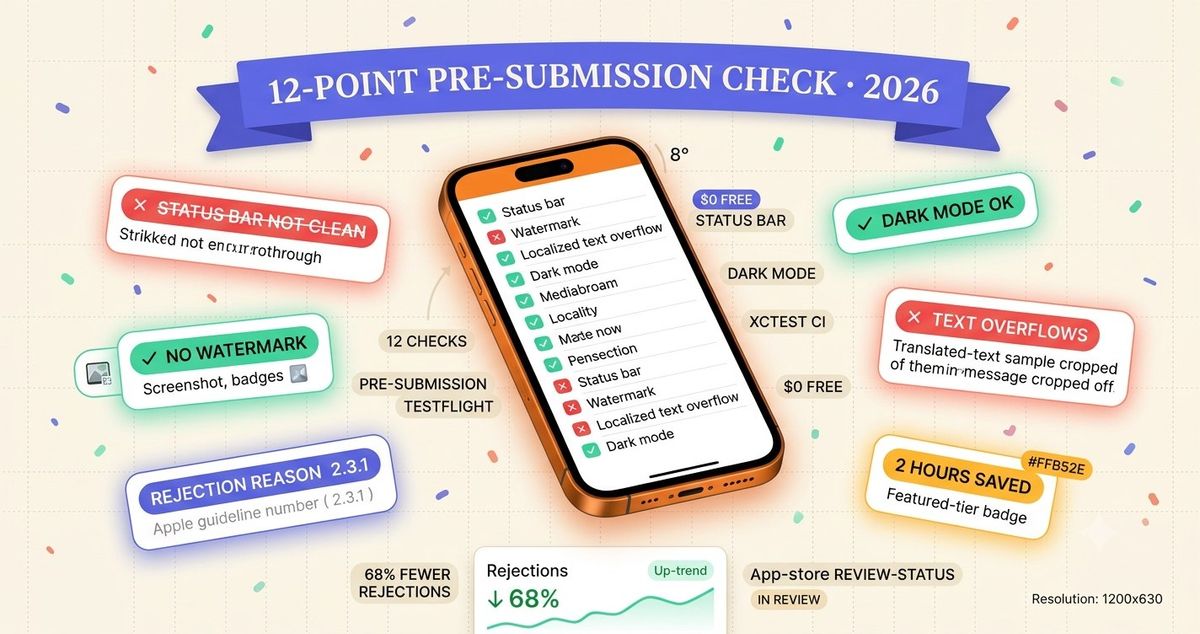
TL;DR: Most screenshot-related App Store rejections trace back to Guideline 2.3.3, screenshots that don't accurately represent the app. TestFlight is the cheapest place to catch these before you submit, because you're looking at the running app instead of static exports. This post is a 12-point checklist for what to check in a TestFlight build, a quick breakdown of what TestFlight can and can't catch, and how to automate the checkable parts in CI with XCTest.
This matters more than it looks like on paper: a rejected submission over a screenshot issue costs you the resubmission cycle plus another pass through the review queue, often 24-48 hours, on top of whatever launch or update schedule you were targeting. None of the twelve checks below require special tooling or a paid service; they just require running them against the right build, in the right locale, before you export final screenshots.
Why TestFlight Is the Screenshot Validation Step Most Indie Devs Skip
Screenshot review usually happens in one of two ways for indie teams: someone opens the final PNG exports right before uploading to App Store Connect, or nobody reviews them at all because the screenshot generation step is automated and "just works." Both skip the one environment where a screenshot-shaped bug is easiest to catch: a real TestFlight build, installed on a real device, in the actual locale a screenshot needs to represent.
A static screenshot export can look correct in isolation and still misrepresent the app: a debug ribbon that only appears in release-adjacent builds, a translated string that fits in your English mockup tool but clips on-device, or an empty state that never matches what a real first-time user sees. TestFlight builds are the last checkpoint before those mistakes become an App Store Connect screenshot upload, and Apple's reviewers will reject on exactly this mismatch under Guideline 2.3.3.
The fix is a fixed checklist run against every TestFlight build before screenshots get finalized, plus moving what can be automated into CI so it never depends on someone remembering to look.
The 12-Point Pre-Submission Screenshot Checklist
Run this against a fresh TestFlight install (not the simulator, not a debug build) for every locale you plan to submit screenshots in:
- Status bar is clean. No development carrier name, no 9:41 override missing, no low-battery or airplane-mode icon left on from testing.
- No debug overlays or console traces. Feature-flag banners, FPS counters, and staging-environment ribbons (common in React Native and Flutter debug/staging builds) must not appear.
- No placeholder or Lorem Ipsum content. Every text field, card, and list in the screenshot's view must show realistic content, not seed data left over from a test account.
- Localized text doesn't overflow or truncate. Switch the device's language and region to match the locale before checking. See our Google Play vs. App Store Connect locale code mapping if you're juggling which code maps to which market.
- Dark mode variant is present and correct (if your app supports it and you submit dark mode screenshots). Check for any component that's still hardcoded to a light-mode color.
- No account-specific or personal data. Test accounts, real email addresses, or seeded user names should never appear in a screenshot destined for the public App Store listing.
- Empty states are actually populated. A screenshot of an onboarding or first-launch state should show what a real, engaged user's screen looks like, not a blank list.
- System permission dialogs are dismissed. A stray "Would Like to Access Your Camera" sheet should never be mid-capture in a screenshot.
- Notch, Dynamic Island, and safe-area content isn't clipped. Check this per device class. What clears the notch on an iPhone 15 can clip under the Dynamic Island cutout on newer hardware.
- In-app purchase or subscription UI matches what's actually configured in App Store Connect. A screenshot showing a price or plan that doesn't exist in your live IAP config is a common, avoidable rejection.
- Third-party SDK banners are suppressed. Ad network test banners, analytics debug widgets, and crash-reporter overlays need to be off in the build you screenshot from.
- Screenshot dimensions match the device class you're uploading for. Cross-check against our App Store screenshot size reference before final export. An off-size PNG gets silently rejected by App Store Connect's upload validation, independent of anything TestFlight shows you.
What TestFlight Catches vs. What It Doesn't
TestFlight shows you the running app, which makes it excellent at catching runtime and content issues, but it never sees the actual screenshot files you separately upload to App Store Connect, so a few failure modes slip through no matter how carefully you review a build.
| Issue type | TestFlight catches it? | Why |
|---|---|---|
| Debug UI / placeholder text | Yes | Visible in the running build |
| Localized text overflow | Yes | Renders live once locale is switched |
| Wrong screenshot file dimensions | No | Only checked at App Store Connect upload |
| Stale screenshot vs. current build | No | Screenshots are uploaded separately, not derived from the build |
| Device-only sensor bugs (camera, NFC, biometrics) | Partial | Only reproduces on matching physical hardware |
| App Store Connect metadata mismatch | No | Metadata lives outside the binary entirely |
Common Gotchas TestFlight Catches Well
The status bar, watermark, and debug-trace issues in the checklist above are exactly the class of bug TestFlight is best at surfacing, because they only show up in a build that's close to production. A simulator screenshot or a locally-run debug build often looks fine specifically because it's missing the staging flags, ad SDK test modes, or crash-reporter overlays that a TestFlight-distributed build carries by default. If your screenshot pipeline captures directly from a debug scheme instead of a TestFlight-equivalent build configuration, you're systematically more likely to ship a screenshot with an artifact a real reviewer build wouldn't have. Or, just as often, a debug artifact a reviewer build DOES have that your local screenshot missed entirely.
Setting Up Locale-Specific TestFlight Groups
Checking item 4 on the list, localized text overflow, only works if the TestFlight build you're reviewing is actually running in the target locale, not just installed on a device that happens to be set to English. Two ways to get there:
- Device-level locale switch. On the test device, go to Settings → General → Language & Region and add the target language/region, then reboot the app. This is the closest match to what a real user in that market sees, including system-level string overrides (date formats, number formats) that can affect layout independent of your own translated strings.
- TestFlight external groups per locale. For teams localizing into many languages, a lighter-weight pattern is a small external TestFlight group per priority market, each pre-configured to that locale via a build-time flag, so reviewers in each group are only ever looking at one locale's rendering and can flag overflow without needing to reconfigure a device each time.
Either approach surfaces the same class of bug: a string that translates correctly but doesn't fit the space the UI allocates for it. German and Finnish are the most common offenders for indie apps because of long compound words; right-to-left languages like Arabic and Hebrew introduce a second failure mode: mirrored layouts that clip in the opposite direction from what an LTR-only review would catch.
Automating Screenshot Validation in CI
Everything in the checklist above that's a code-visible state (debug banners, placeholder strings, missing localized content) can be asserted in an XCTest UI test that runs before a build ever reaches TestFlight, catching the failure in CI instead of during manual review:
func testScreenshotStateHasNoDebugArtifacts() throws {
    let app = XCUIApplication()
    app.launchArguments += ["-UITestScreenshotMode"]
    app.launch()

    // Assert no debug/staging banner is present in the captured hierarchy.
    XCTAssertFalse(app.staticTexts["DEBUG_BUILD"].exists)
    XCTAssertFalse(app.staticTexts["Lorem ipsum"].exists)

    // Assert the screen that will be screenshotted has real content, not an
    // empty state.
    XCTAssertTrue(app.cells.count > 0, "Screenshot source screen is empty")

    let screenshot = app.screenshot()
    let attachment = XCTAttachment(screenshot: screenshot)
    attachment.lifetime = .keepAlways
    add(attachment)
}
Wire this into the same CI job that builds your TestFlight upload, and a build with a leftover debug banner or an empty list fails before it's even distributed, rather than getting caught (or missed) during a manual look at the TestFlight build. This doesn't replace the manual checklist; it removes the parts of the checklist that are objectively code state and shouldn't depend on someone remembering to check them.
When TestFlight Can't Catch It: Real-Device-Only Bugs
A handful of screenshot-relevant bugs only reproduce on physical hardware TestFlight testers happen to be using, and won't show up in a Simulator run or even in your own TestFlight review if you're testing on a single device model:
- Camera and AR content. A screenshot showing live camera or ARKit output can render fine on your test device and clip or distort on a different sensor/lens configuration.
- Biometric prompts. Face ID vs. Touch ID UI differs by device; a screenshot captured on a Touch ID device won't reveal a Face ID-specific layout issue.
- Foldable and iPad multitasking layouts. Stage Manager and Split View states need checking on the actual iPad class you're submitting screenshots for; a Simulator run doesn't always match on-device multitasking chrome.
- Cellular carrier badges. A status bar carrier name issue may only appear on a device with an active SIM, not one running on Wi-Fi-only in TestFlight.
For these, the honest answer is: distribute the TestFlight build across a small pool of physical devices before finalizing screenshots, not just simulators or a single personal device. If you're localizing screenshots across many languages, this is also the point to sanity-check against a manual vs. MT vs. AI localization comparison. An automated translation pass can introduce exactly the kind of text-overflow bug this checklist exists to catch, and it's cheaper to catch it in a TestFlight build than after fifteen locales are already uploaded to App Store Connect.
If a build does get rejected despite this checklist, cross-referencing the specific rejection message against our App Store rejection code reference is the fastest way to tell whether it's a screenshot-content issue (fixable with this checklist) or an unrelated metadata or binary issue.
Frequently Asked Questions
Does TestFlight catch App Store screenshot rejections before I submit?
TestFlight catches most of the visible problems that cause screenshot-related rejections under App Store Review Guideline 2.3.3 (accurate metadata): debug UI, placeholder text, wrong status bar state, and localized text overflow. It cannot catch anything specific to the actual App Store screenshot files you upload separately in App Store Connect, since TestFlight only shows your running app, not your submitted marketing screenshots.
What is the most common screenshot mistake that gets iOS apps rejected?
The most common issue is a mismatch between what the screenshot shows and what the app actually does at first launch: debug banners, Lorem Ipsum placeholder text, or a UI state (like an empty onboarding screen) that doesn't represent real usage. Apple's guideline 2.3.3 requires screenshots to accurately reflect the app in use.
Can I automate screenshot validation in CI before submitting to TestFlight?
Yes. XCTest's XCUIScreenshot API can capture screenshots during a UI test run and assert on view hierarchy state (no debug overlays, no placeholder strings, populated content) before the build ever reaches TestFlight. This shifts validation left, catching failures in CI instead of during manual TestFlight review.
Do App Store screenshots need to match every localized version of my app?
Yes. Each locale you submit screenshots for should show that locale's actual UI, and translated strings need to fit without overflowing or clipping. TestFlight builds installed with a device set to that locale will surface truncation and layout breaks before submission; the App Store Connect screenshots must then be recaptured or localized to match.