TL;DR: Upload at least one screenshot per required device size and up to 10 per size, as .jpeg, .jpg or .png. For iPhone, Apple now asks for the "Dynamic Island (medium display)" size (1179 x 2556 or 1206 x 2622 pixels portrait) and, if you support iPad, one 13-inch iPad screenshot. Google Play wants at least two screenshots to publish a listing. Put your strongest screen first, keep each headline short enough to read on a phone, and localize the set for every market you sell in.
What Are App Store Screenshots?
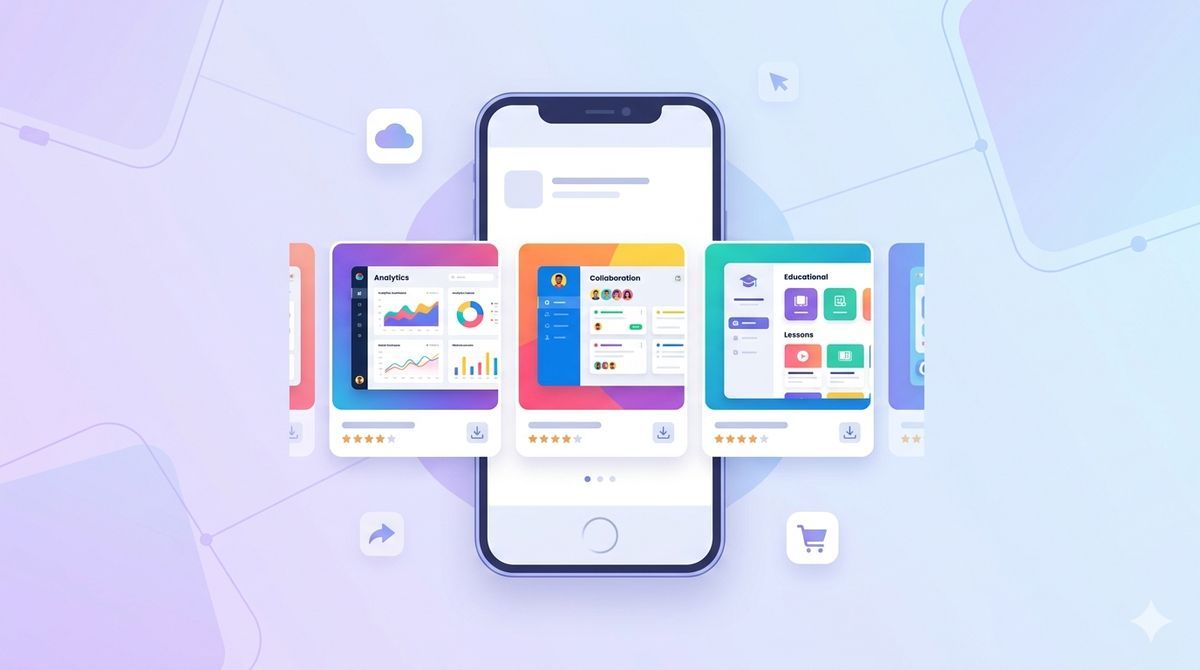
App store screenshots are the images at the top of your product page. They sit next to your icon, title and rating in search results and on the page itself, so they are the first thing most visitors look at before they read a word of your description. Apple and Google both treat them as a required part of a listing, and both publish exact size rules. We keep the numbers below tied to those official pages and mark the date we last checked them.
How Many Screenshots and Which Sizes Do You Need?
Apple's screenshot specifications page says you must include at least one screenshot and can upload up to 10 per device size. Two sizes are required to submit: iPhone with Dynamic Island (medium display), and iPad 13-inch display if your app supports iPadOS. If your interface is the same across device sizes, Apple says you only need the highest required resolution and App Store Connect scales it down for smaller devices.
| Slot | Portrait size | Status |
|---|---|---|
| iPhone, Dynamic Island (medium) | 1179 x 2556 or 1206 x 2622 | Required |
| iPhone, Dynamic Island (large) | 1260 x 2736, 1290 x 2796 or 1320 x 2868 | Optional if medium is provided |
| iPad 13-inch | See Apple's page | Required if you support iPad |
Google Play sets a lower bar. Its Play Console help says you must provide a minimum of two screenshots across different device types to publish a store listing, in JPEG or 24-bit PNG with no alpha, each side between 320 and 3840 pixels, and the longer side can be at most twice the shorter one. To be eligible for large recommendation formats on phones, Google asks for at least four screenshots at 1080 pixels or more, 9:16 for portrait. For the full size tables per device see our complete screenshot sizes guide, and for the count question see how many screenshots to upload.
Sources: Apple App Store Connect Help, "Screenshot specifications"; Google Play Console Help, "Add preview assets to showcase your app" (both fetched November 16, 2026).
The Anatomy of a High-Converting Screenshot
A screenshot that earns the tap has four parts:
- Headline text: A short, benefit-driven line at the top or bottom. Say what the user gains, not what the feature does.
- Device frame: A device mockup that gives the interface context, or a frameless layout for a cleaner look. See our device mockup guide.
- UI showcase: The real app screen with realistic data. Placeholder content looks unfinished.
- Visual hierarchy: Contrast, size and position that lead the eye from headline to UI.
Design Principles That Hold Up
1. Lead With Your Strongest Screen
The first screenshots are the ones visible in search results without a swipe, so they carry the pitch. Show the core value of the app there. A splash screen or a login page wastes the slot.
2. Tell a Story Across the Set
Treat the set as a sequence. Open with the hook, use the middle frames for key features, and close with a call to action or social proof. Our examples post shows real sets built this way.
3. Keep Text Readable at Thumbnail Size
Many people browse on a phone, so headlines have to survive being shrunk. Aim for five to seven words, high contrast, and a clean sans-serif. This is our own working rule, not an Apple requirement. Apple also reviews screenshots against the App Review Guidelines, and our guideline 2.3.3 post covers what that means for marketing-style frames.
4. Stay Consistent
Use one palette, one font and one layout pattern across the set. A consistent set reads as one product.
What Changed in October 2026: Multiseat Subscriptions
Added October 24, 2026. On October 22, 2026, Apple announced that organizations and educational institutions can buy app subscriptions in volume through multiseat purchasing. One customer, whom Apple's help page calls the group purchaser, buys an auto-renewable subscription in a quantity greater than 1 and controls who has access. Multiseat purchasing does not add a new screenshot slot or change an asset size. Apple's announcement is about purchase options, not product page rules, so the specifications above still apply.
| Item | What Apple says | When |
|---|---|---|
| Volume purchases | Organizations that use Apple Business or Apple School Manager can buy your subscription in volume | Starting October 22, 2026 |
| Default setting | Multiseat purchasing is enabled in App Store Connect unless you changed it earlier | Now |
| Group sandbox testing | Configure and test group purchases in your Sandbox Apple Account | Starting November 2026 |
| Group purchases on the App Store | People buy multiple seats and invite others to access the subscription | This winter |
Which Subscriptions Are Already Opted In?
Apple's help page for managing purchase options says multiseat purchasing is on by default unless you adjusted the setting before. Two groups of existing subscriptions start opted out: subscriptions created before September 14, 2026 that do not use StoreKit 2, and subscriptions that have Family Sharing turned on. To change the setting, open the subscription in App Store Connect and edit its Purchase Options section. Apple lists the Account Holder, Admin and App Manager roles for this, and warns that changes to availability or multiseat settings may affect customers' ability to renew or purchase additional seats.
If a subscription has Family Sharing on, read Apple's help page and the App Store Connect API page before you change anything. The two pages describe how Family Sharing and multiseat purchases overlap in different words, so test your own subscription in the sandbox instead of relying on one reading.
What It Means for Your Screenshots
If your subscription now serves teams or classrooms, your screenshots can say so. A frame that shows a shared workspace or an admin view tells a buyer at an organization that the product fits their case. Our feature-callout post shows layouts for that kind of message. Subscription names and descriptions are shown to buyers in each language you support, so the localization advice below applies to them too. Update your subscription description if it says the subscription is for one person.
Sources for this section:
- Apple Developer News, "Offer your subscriptions to businesses and schools", October 22, 2026
- Apple App Store Connect Help, "Manage purchase options for an auto-renewable subscription"
- Apple App Store Connect API documentation, "Configuring multi-seat subscriptions for organizations"
The Localization Advantage
The same screenshots shown to a German, Japanese or Arabic visitor should speak their language. Translated headlines are the baseline. Text length changes the layout (German runs long, see text expansion by language), and right-to-left languages need a mirrored design (see RTL screenshots). We have not found an official Apple or Google figure for the download lift from localized screenshots, so we do not quote one here.
Shotlingo manages translations across 40+ languages and exports localized screenshots in bulk, which replaces a per-language pass in Figma or Photoshop. Before you upload, run your text through the free localization checker to catch overflow. The upload steps are in our App Store Connect upload guide.
Common Mistakes to Avoid
- Too much text: If the screenshot reads like a blog post, cut it. One idea per frame.
- Outdated UI: Screenshots of an old version of your app erode trust. Refresh them with each major release. You can swap them without a new build, as described in updating screenshots without a new build.
- Generic backgrounds: Plain white or default gradients blend into the store page. Pick a color that stands out in search results.
- Wrong sizes: A size Apple does not list for the slot gets rejected or scaled. Check the table above against Apple's page before upload.
Measuring Screenshot Performance
Apple's App Analytics reports impression-to-download conversion, and Google Play Console offers store listing experiments for A/B testing. Test one change at a time, as covered in our screenshot A/B testing guide. Screenshots are a living asset: update them for releases and seasons, and re-test when the numbers move.
Once the listing is solid, send people to it. The free promotion guide lists channels that cost nothing, and Apps of the Week is one place to get seen.
FAQ
How many screenshots can I upload to the App Store?
Apple lets you upload up to 10 screenshots per device size and requires at least one, in .jpeg, .jpg or .png format.
What screenshot size does the App Store require for iPhone?
Apple requires at least one screenshot for iPhone with Dynamic Island (medium display), at 1179 x 2556 or 1206 x 2622 pixels in portrait. Larger sizes are optional because App Store Connect can scale down.
How many screenshots does Google Play require?
Google Play requires a minimum of two screenshots across different device types to publish a store listing. For large-format recommendations on phones it asks for at least four screenshots at 1080 pixels or more.
Do I need to localize app store screenshots?
Neither store requires it. It is a conversion choice: visitors read the screenshots in their own language, so localizing them for your top markets removes a barrier at the first screen they see.
Updated November 16, 2026: rewrote the specifications against Apple's and Google's current pages, removed statistics we could not source, and kept the October 24 multiseat section. Apple and Google may change these rules, so confirm them in App Store Connect and Play Console before you upload.